
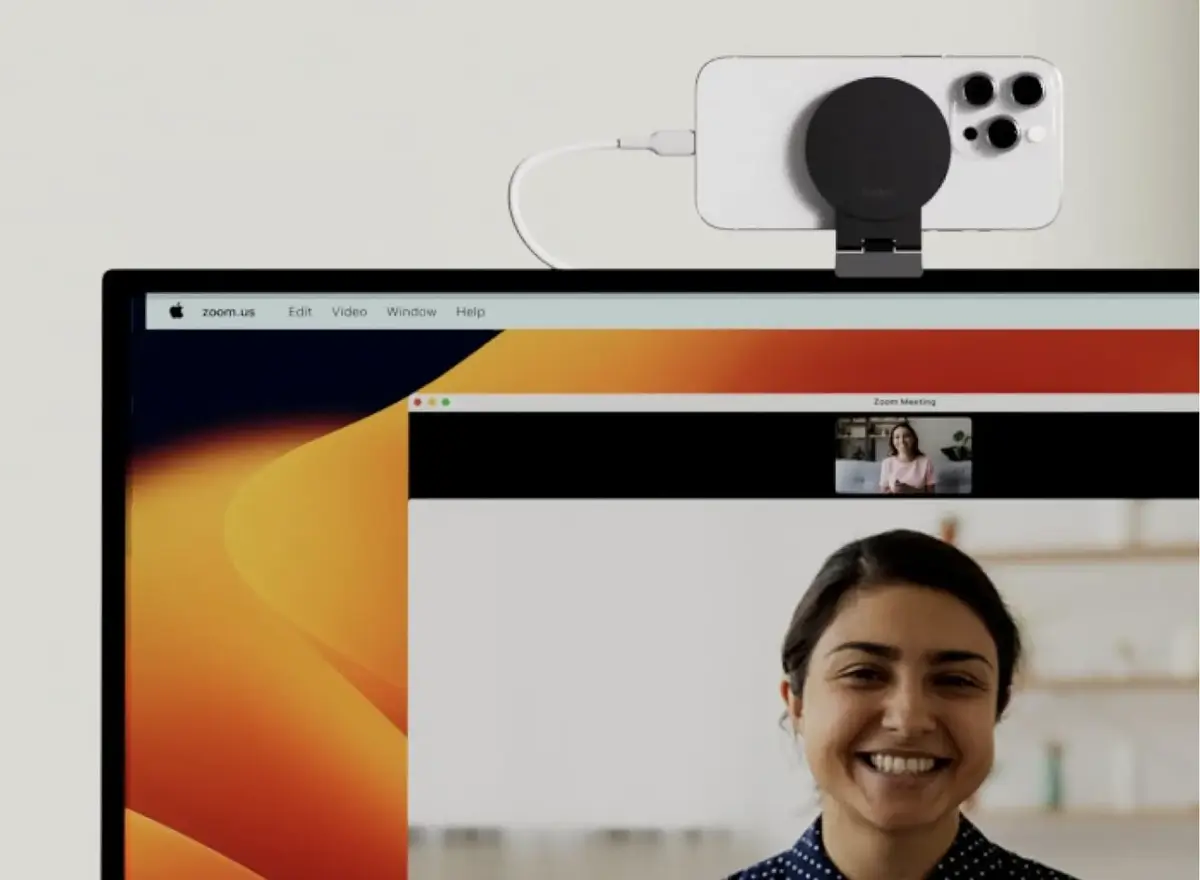
If you’re disappointed with the webcam quality of your iMac or Apple Studio Display, there’s good news: you can harness the superior camera and microphone of your iPhone instead.
Amazon co-founder MacKenzie Scott has donated over $19 billion to charity in just five years
Diamond batteries powered by nuclear waste promise 28,000 years of clean energy
Using Your iPhone as a Microphone
To use your iPhone as a microphone on your Mac, navigate to Settings
, select Sound
, and under Input
, choose iPhone Microphone from Continuity Camera.
If your iPhone doesn’t show up, initiate a FaceTime call with your iPhone unlocked and connected to the same Wi-Fi network as your Mac. Usually, the software will prompt you to use your iPhone as a webcam. It should also appear in the Video menu of FaceTime.
Note that this can be done either wired (which I recommend as it charges your phone simultaneously) or wirelessly. This trick is particularly useful not only because the iPhone’s camera is significantly better than most built-in webcams, but also because it is not always possible to be at a computer with an integrated webcam. This feature is not exclusive to Apple software. It also works with other video conferencing applications like Zoom or Microsoft Teams.
Convenient MagSafe Support by Belkin
For easier use, Belkin offers a perfect support stand for your iPhone. This allows you to effortlessly position your iPhone above your screen for an optimal portrait or landscape view.