
Upgrading to a new Android phone doesn’t mean leaving your digital life behind. From messages and apps to your cherished photos and videos, there are now several reliable ways to make sure everything moves over smoothly. Whether you’re switching brands or sticking with your favorite manufacturer, here’s a guide to getting your new phone set up exactly the way you like it—without the stress.
Amazon co-founder MacKenzie Scott has donated over $19 billion to charity in just five years
Diamond batteries powered by nuclear waste promise 28,000 years of clean energy
Start fresh—with everything already there
The excitement of unboxing a new phone is real—I still remember switching from my Pixel 4 to a Galaxy S22, half-expecting it to take hours of fiddling. To my surprise, the whole thing was wrapped up in minutes, and my home screen looked nearly identical.
Most Android users can now rely on Google’s cloud backup system to handle the heavy lifting. Since Android 10, your data—apps, contacts, messages, settings, and photos—is automatically backed up to your Google account (if enabled). All it takes is a stable Wi-Fi connection and your Gmail login to begin restoring everything onto your new phone.
To check if backup is active on your old phone, follow the path in your Settings menu—though it can vary slightly depending on your device:
-
Samsung: Settings > Accounts and backup > Backup and restore
-
Xiaomi: Settings > Additional settings > Backup & reset
-
Google or Nokia: Settings > System > Backup
-
OnePlus or Sony: Settings > System > Backup
-
Huawei: Settings > System > Backup & restore
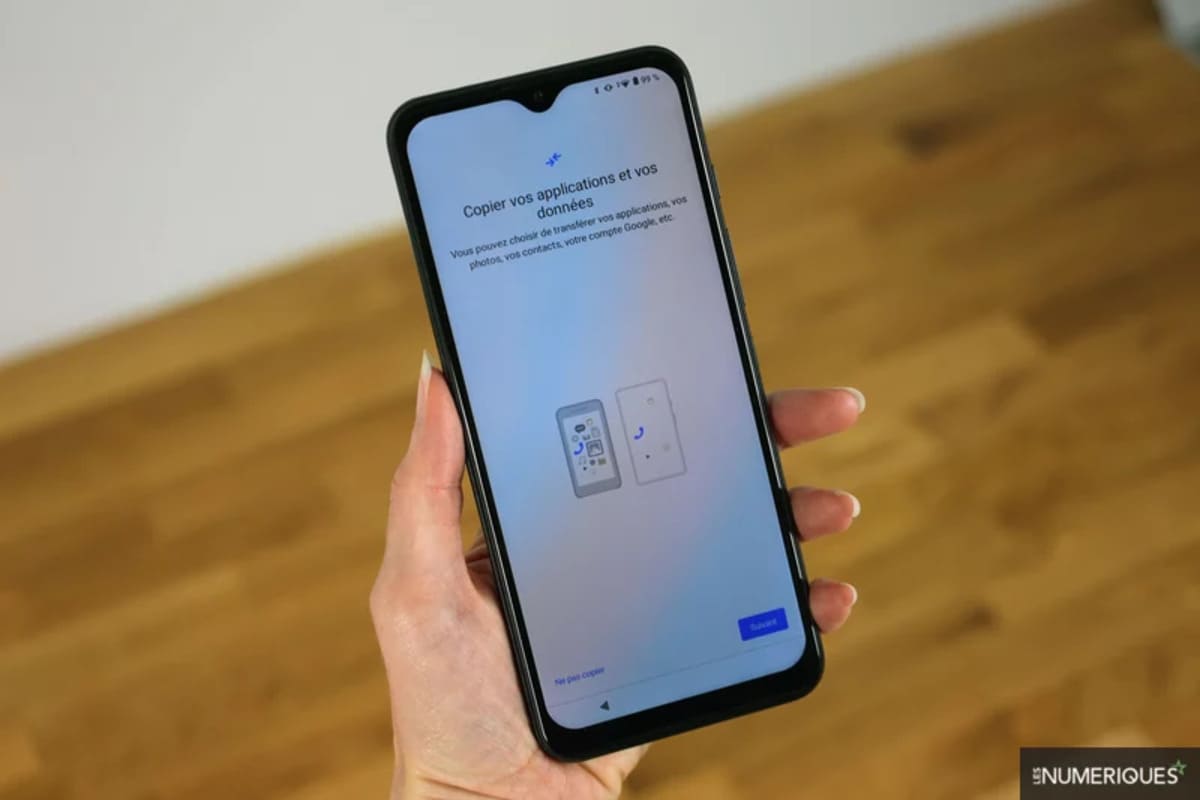
Once backup is enabled, hit “Back up now” to ensure your latest data is saved. When setting up your new phone, choose the “Copy apps and data” option and sign in with your Google credentials—your content will begin transferring over in minutes.
Switching from iPhone? No problem
If you’re coming from iOS, don’t worry—Google Drive for iOS can take care of most of the work. Just install it on your iPhone, log in with your Google account, then head to the app’s Settings and tap “Backup.” You can choose to back up contacts, calendar events, and your photo library.
One crucial reminder: iMessages and FaceTime won’t work on Android. Be sure to deactivate them on your iPhone before switching—otherwise, your texts could get lost in the void.
Same brand? Use the manufacturer’s app for a smoother ride
If both your old and new phones come from the same brand, your easiest bet is likely the official transfer app. These apps create a secure wireless connection between the two devices and transfer everything—including wallpapers, ringtones, and even your call logs—without needing cloud storage.
NASA warns China could slow Earth’s rotation with one simple move
This dog endured 27 hours of labor and gave birth to a record-breaking number of puppies
Each major brand has its own version:
-
Samsung: Smart Switch
-
Huawei: Phone Clone
-
Xiaomi: Mi Mover
-
OnePlus and Oppo: Clone Phone
-
Sony: Xperia Transfer
They’re remarkably intuitive. For instance, on OnePlus’s Clone Phone app, you select whether you’re the old or new phone, scan a QR code, and watch as your data moves seamlessly across. These tools often outperform general cloud backups when it comes to app settings and local files.
When third-party apps can still help
While many third-party data transfer apps have fallen out of favor (some no longer work on recent Android versions), one tool still worth mentioning is SMS Backup & Restore. It’s a bit old-school, but it’s great for backing up your SMS and MMS messages. The app lets you create an XML file of your texts, which you can move to your new phone manually or through Google Drive or a microSD card.
That said, steer clear of random transfer apps filled with ads or limited functionality. Stick with trusted options when dealing with your personal and sensitive data.
The old-school method: USB cables and copy-paste
Sometimes, the simplest solutions are still the most effective. Plug both phones into your computer, set them to “File transfer” mode, and they’ll show up like USB drives. You can drag and drop photos, videos, and documents from your old phone’s DCIM or Downloads folders directly onto the new one. It’s a great way to move large files or files not covered by cloud backup.
Bottom line: choose what works for you
Whether you go full cloud, use your manufacturer’s app, or stick to manual transfers, migrating your data to a new Android is now faster and easier than ever. If privacy is your top concern, local transfers via cable or official apps may be best. If convenience is king, Google’s cloud solution is a breeze.
And trust me—taking the time to set things up right from the start saves a ton of hassle down the road. Because nothing kills the excitement of a new phone like losing your vacation photos or missing your contacts list.