
Amazon co-founder MacKenzie Scott has donated over $19 billion to charity in just five years
Diamond batteries powered by nuclear waste promise 28,000 years of clean energy
SSD Port on the Freebox Ultra
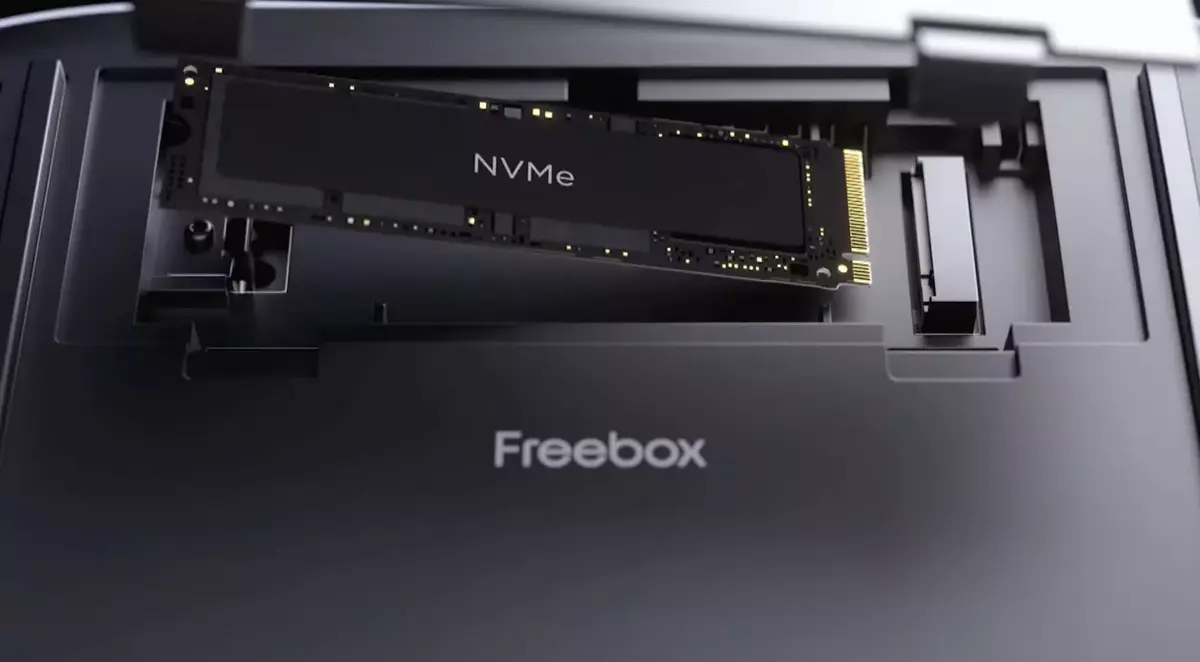
The Freebox Ultra replaces the previous version’s four SATA ports with a single M.2 NVMe port. While this change reduces the ability to configure RAID arrays, which require multiple hard drives or SSDs, it offers much faster storage access, a considerable advantage for certain specific uses.
Installing the SSD is made simple through a small hatch located under the box, making the process quick and intuitive. Free provides detailed instructions to guide you through this setup.
- Unplug your Internet Server’s power.
- Turn over the Internet Server and open the hatch.
- Handle the hatch gently to avoid damaging it.
- Insert your NVMe hard drive at an angle into the connector, then position it flat in the slot until you hear a click.
- Once the hard drive is inserted, reposition the hatch and reconnect your Internet Server’s power.
- All options related to your NVMe hard drive’s use (NAS, formatting, storage, etc.) are available through the Freebox Files app and Freebox OS.
Ultra Simple Installation
Some users report interference affecting Wi-Fi on the 2.4 GHz band, commonly used by home automation devices, when they connect hard drives or SSDs via the USB port of the Freebox Ultra. To access storage with this box, it is therefore preferable to use an SSD on the M.2 port, which avoids this type of issue.
Which SSD for the Freebox Ultra?
Free does not provide a list of compatible SSDs or models in its accessories store, but still offers some useful guidelines :
- Type of disk: NVMe
- Disk format: 2280, M-key, no heat sink
- Generation: PCIe 3 or lower
To equip your Freebox Ultra, you’ll need to select an M.2 NVMe SSD, making sure not to confuse it with the rare SATA models, and choose the M.2 2280 format (22 mm wide and 80 mm long, the most common format). It is important to not install an SSD with a heat sink, as space is limited, and the box’s ventilation system handles cooling.
The port of the Freebox Ultra is compatible with PCIe Gen3 SSDs and lower versions. The standard is backward compatible, allowing the installation of PCIe Gen4 or Gen5 SSDs, even though the performance will be capped at the speeds of PCIe Gen3 (up to 1 GB/s per lane, with four lanes possible for a maximum of 4 GB/s). While some may regret the lack of compatibility with a more recent standard, this limitation remains suitable for the box, which is limited to a 10 GbE network (about 1,250 MB/s theoretical). PCIe Gen3 SSDs, already very efficient, are more than adequate to exploit this bandwidth.
To benefit from the best speeds, configuring a 10 GbE network is recommended, now made easier with the SFP+ to RJ45 adapter offered with the Freebox Ultra.
Finally, with the widespread availability of PCIe Gen4 SSDs, these are often offered at comparable, if not lower, prices than the Gen3 models. Below is a selection of models that offer an excellent quality/price/performance ratio, carefully recommended by the editorial team for their value.
NASA warns China could slow Earth’s rotation with one simple move
This dog endured 27 hours of labor and gave birth to a record-breaking number of puppies