
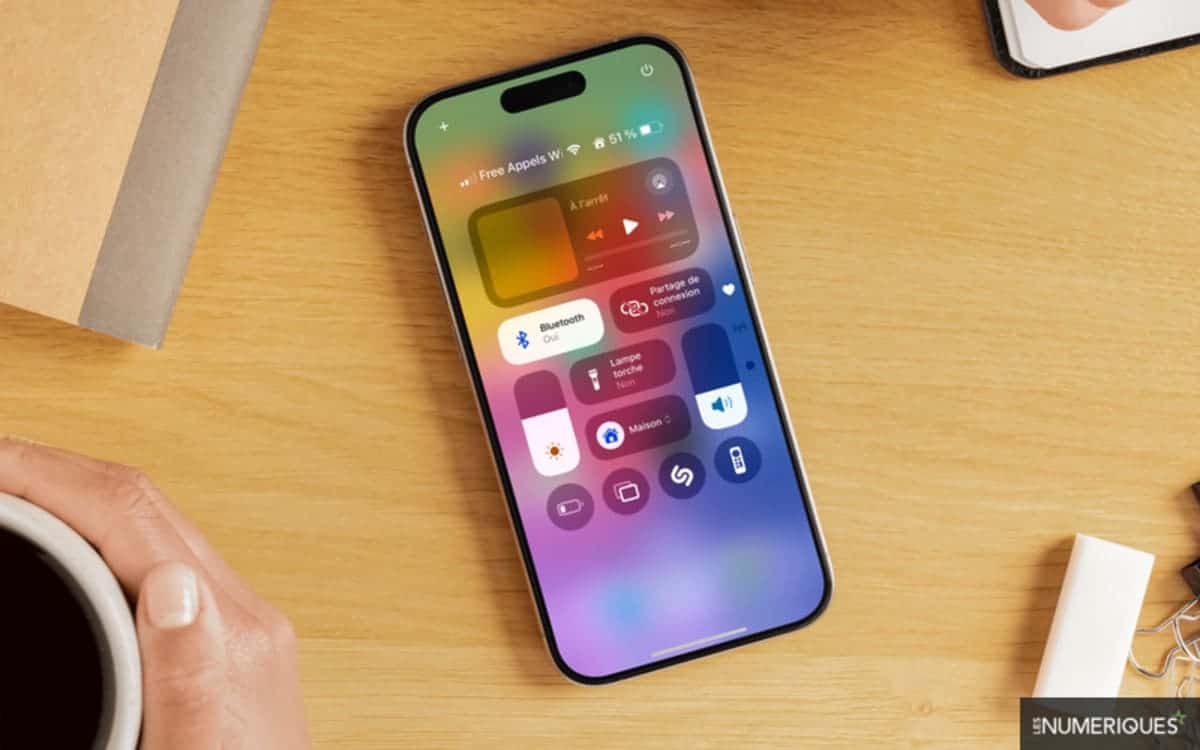
We all have that one feature on our phones we use daily without really thinking about it. For many iPhone users, it’s the Control Center—a swipe, a tap, and voilà, you’ve toggled Wi-Fi or skipped a song. But with iOS 18, Apple has turned this underrated tool into a fully customizable dashboard, giving us the power to tailor it to our daily habits. If you’ve ever wished for faster access to the things you actually use, now’s your chance to transform your iPhone’s Control Center into a true productivity hub.
Amazon co-founder MacKenzie Scott has donated over $19 billion to charity in just five years
Diamond batteries powered by nuclear waste promise 28,000 years of clean energy
Customize your Control Center in seconds
When Apple introduced lock screen customization in iOS 16, it felt like a refreshing change. Now with iOS 18, they’ve pushed it further—letting users rearrange, resize, and personalize nearly every inch of the Control Center. Think of it as moving from a hotel minibar to your fully stocked kitchen.
To get started, simply swipe down from the top-right corner of your screen (unless you’re still clinging to an old iPhone with a home button—no judgment). Then, tap the “+” icon in the upper-left corner. That opens the editing mode, where the magic begins.
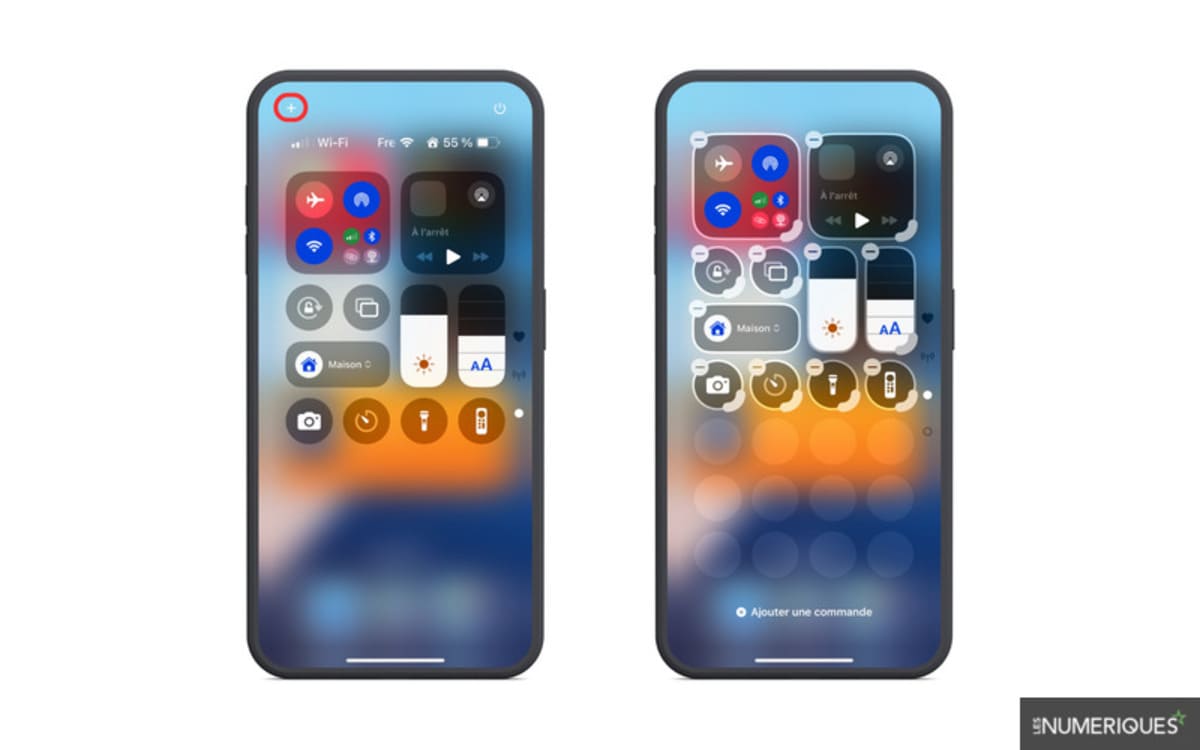
Add, move, and resize your favorite controls
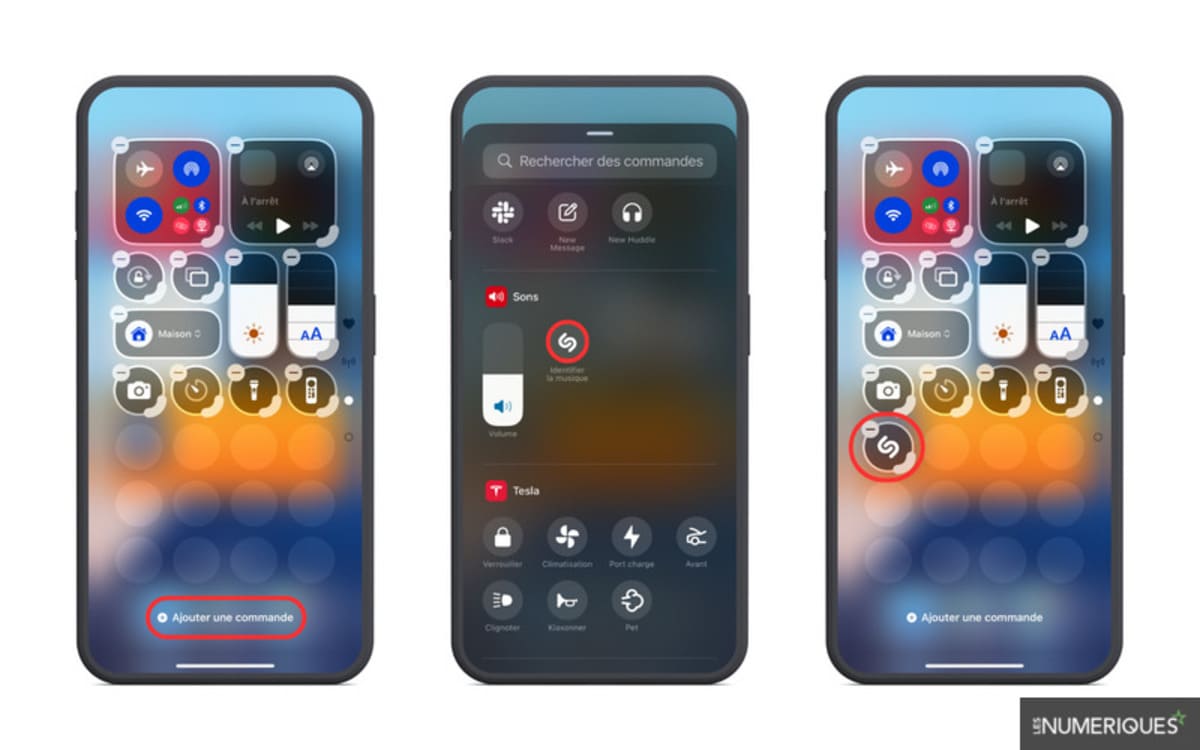
Want to add a shortcut to launch your camera, toggle dark mode, or start a voice memo with a single tap? With iOS 18, it’s as easy as choosing from a library of Apple and third-party app controls. Tap “Add a Control” and you’ll see a buffet of options—many you’ve likely never explored before.
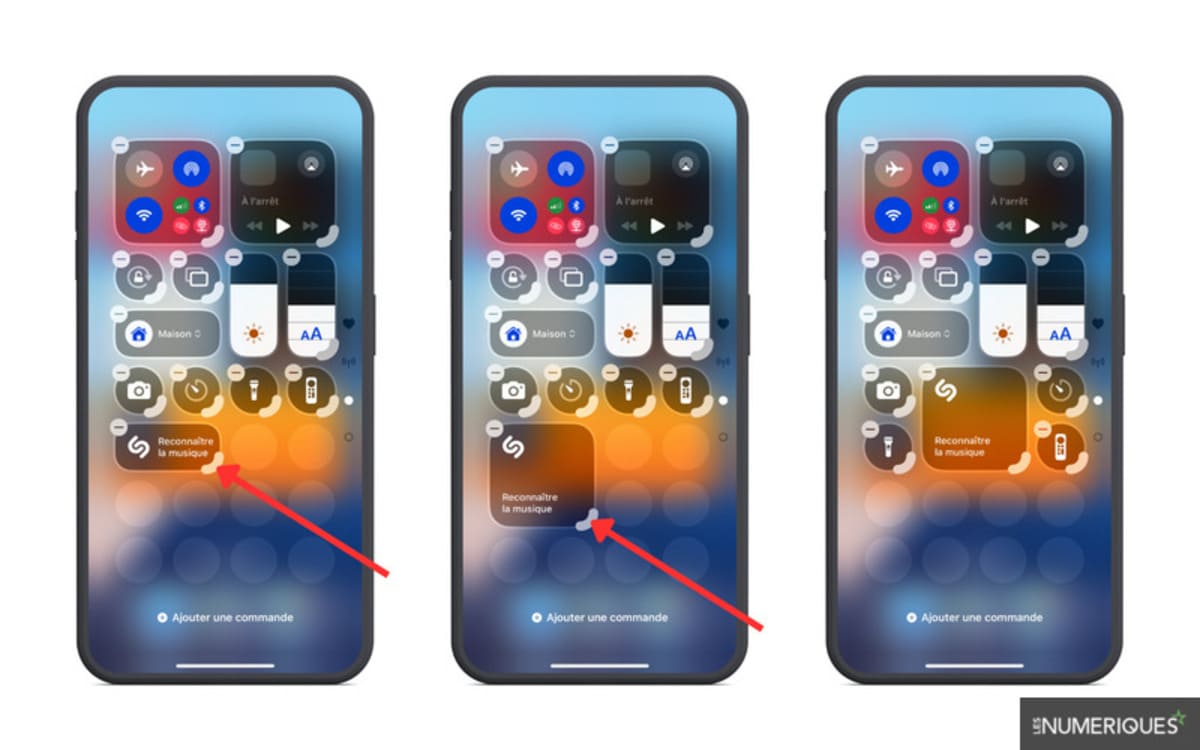
Once added, you’re not stuck with their default placements. You can drag and drop controls into the order that suits your flow—whether that’s putting your flashlight front and center for those 3 a.m. pet check-ins or bumping “Screen Recording” up top if you’re always making tutorials.
NASA warns China could slow Earth’s rotation with one simple move
This dog endured 27 hours of labor and gave birth to a record-breaking number of puppies
Here’s something I genuinely didn’t expect to love: the resizing feature. You can pinch and pull to make certain controls larger or smaller. I now have my favorite timer widget twice the size of the others—ideal when I’m rushing between tasks and need to tap it fast with a flour-covered finger while cooking.
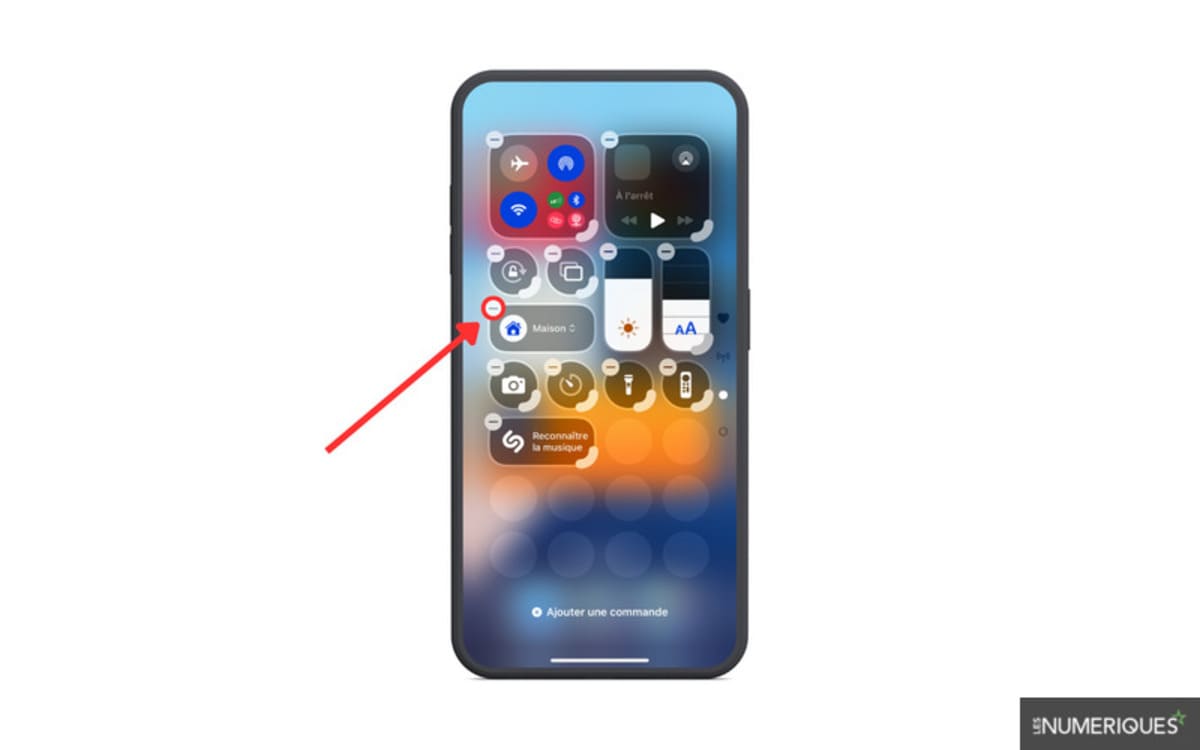
And if you’ve added too much or changed your mind? Just tap the “–” button to remove the clutter.
Create multiple pages for themed layouts
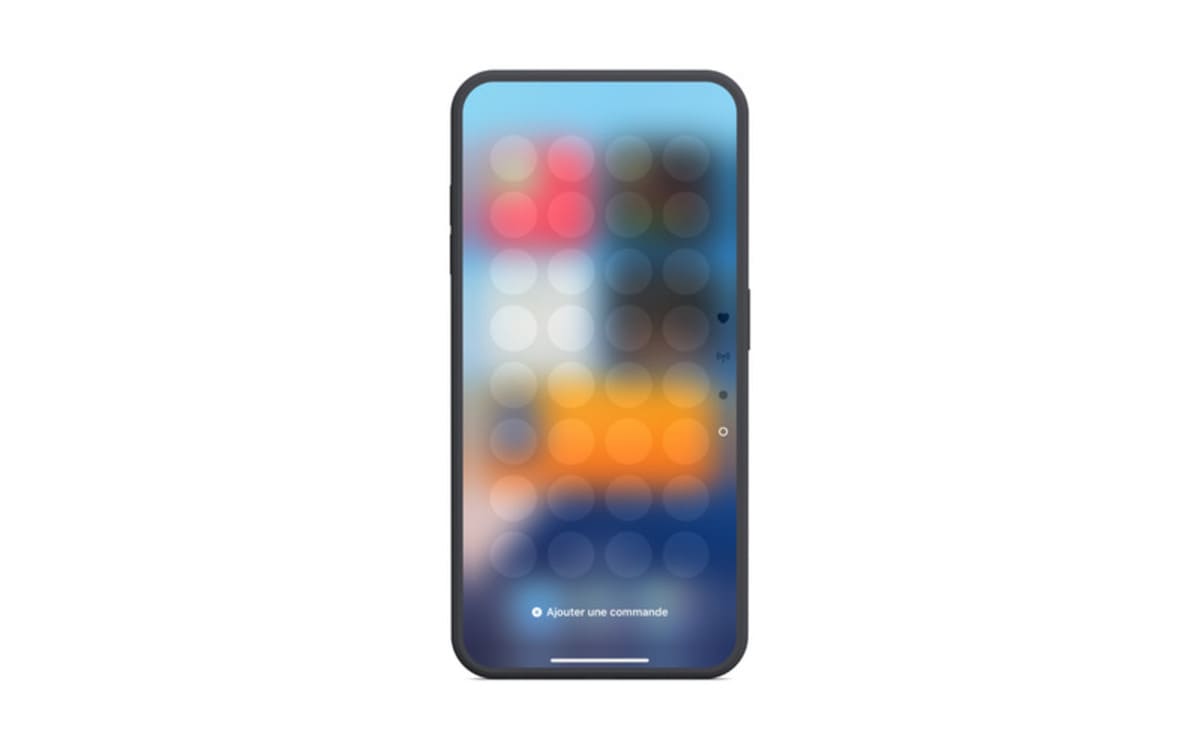
But wait—it gets better. iOS 18 lets you create multiple Control Center pages. It’s a feature that might sound extra, but after a week of use, I couldn’t go back. I’ve set up a page for smart home controls, one for travel essentials, and another for music and media.
To add a new page, swipe down again from the top-right, then simply swipe left to an empty canvas. From there, build a new collection of controls tailored to a specific need or time of day.
It’s the kind of thoughtful flexibility that’s long been missing from iOS—and it genuinely feels like Apple is finally letting us make the iPhone more our own.
The Control Center might not be the flashiest part of iOS 18, but it’s easily one of the most practical upgrades. Whether you’re a minimalist who wants fast access to just three key settings, or a power user who loves a neatly organized command center, this update gives you the tools to build your perfect iPhone control experience.