
Upgrading to a new Android smartphone? Don’t worry about losing your precious data. With a few simple steps, you can transfer everything from photos to apps seamlessly and quickly.
Amazon co-founder MacKenzie Scott has donated over $19 billion to charity in just five years
Diamond batteries powered by nuclear waste promise 28,000 years of clean energy
Simple Steps for Transferring Data to Your New Android Phone
When you get your hands on a shiny new Android smartphone, the first thing you want to do is start using it, right? But before you dive into the features, take a moment to transfer all your data from your old device. It’s a small investment of time that will save you from hours of setting up. Fortunately, transferring data from one Android phone to another has become incredibly easy, especially with Google’s backup system.
Using Google’s Backup System
Since the release of Android 10, Google has made transferring data from one Android phone to another a breeze. With your data safely stored on Google’s servers, you can retrieve everything by simply connecting to a Wi-Fi network. Google will restore your apps, contacts, photos, videos, and even SMS/MMS messages. It’s like magic!
For the transfer, all you need to do is ensure that Google Drive backup is enabled on your old phone. You can check and activate the backup option through your phone’s settings:
-
Samsung: Settings > Cloud and Accounts > Backup and Restore
-
Huawei: Settings > System > Backup & Restore
-
Xiaomi: Settings > Additional Settings > Backup and Restore
-
Google (Pixel): Settings > System > Advanced > Backup
-
OnePlus: Settings > System > Backup
-
Nokia: Settings > System > Backup
-
Sony: Settings > System > Backup
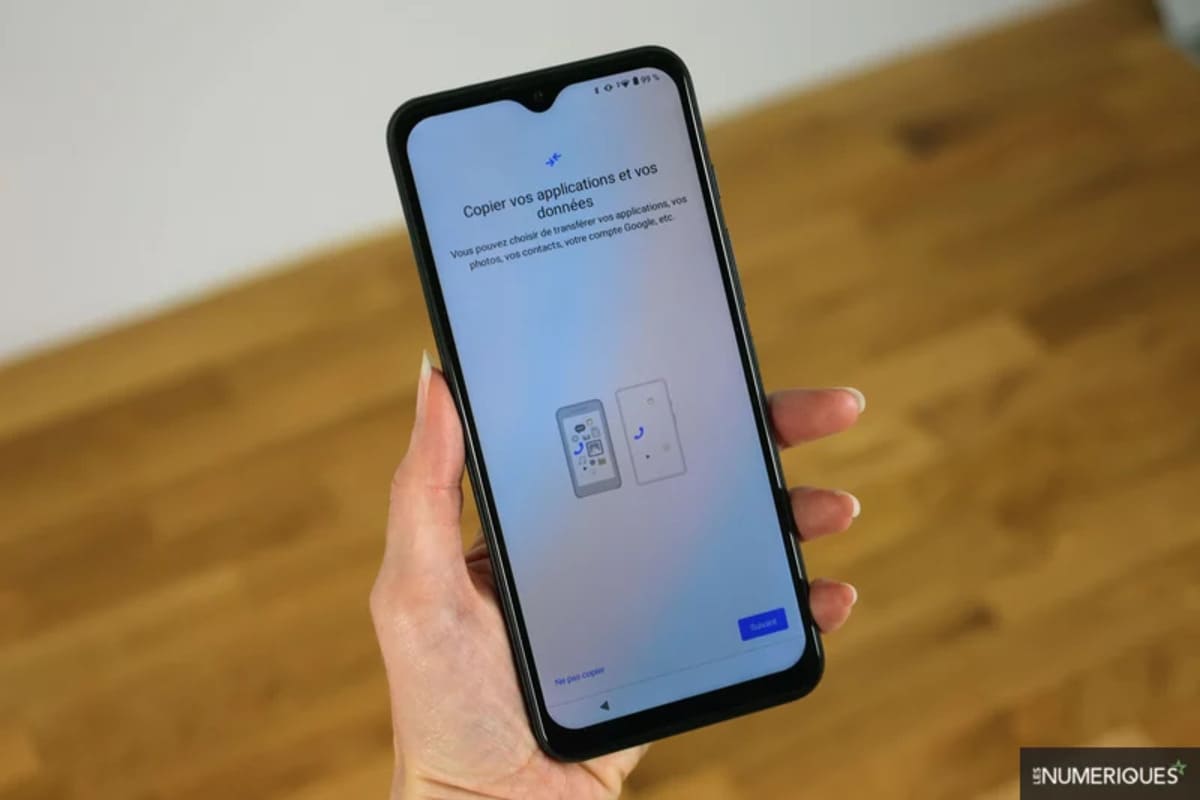
Once you’ve activated Google Drive backup, select “Back up now” or “Sync now,” and the system will save all your data to the cloud. Then, when you set up your new phone, you’ll be prompted to “Copy your apps and data” and can easily follow the on-screen instructions to bring everything over.
Transferring Data from an iPhone to Android
If you’re switching from an iPhone to Android, don’t worry! Google Drive will be your best friend in this case. Start by installing the Google Drive app on your iPhone, then log in with your Google account. Go to the app settings and select “Back Up” to transfer your contacts, calendar events, and photos to Google’s cloud.
Be aware that iMessages and FaceTime calls won’t transfer over to Android. So, before switching, be sure to disable iMessages and FaceTime on your iPhone to avoid missing any important messages.
Using Manufacturer-Specific Apps for Seamless Transfers
If you’re sticking with the same brand of smartphone for your upgrade, the process is even easier. Many phone manufacturers offer their own apps to simplify data transfer. These apps create a direct Wi-Fi network between the two phones, allowing you to quickly migrate contacts, photos, apps, and settings.
NASA warns China could slow Earth’s rotation with one simple move
This dog endured 27 hours of labor and gave birth to a record-breaking number of puppies
Here are the apps from popular manufacturers:
-
Samsung: Smart Switch Mobile
-
Huawei: Phone Clone
-
Xiaomi: Mi Mover
-
OnePlus: Clone Phone
-
Sony: Xperia Transfer Mobile
-
Oppo: Clone Phone
These apps are designed to be intuitive and user-friendly, making the transition from one phone to another seamless. For example, in the OnePlus Clone Phone app, the process is straightforward: choose “I am an old phone” on your old device, and “I am a new phone” on the new device. Then scan the QR code displayed on the new phone, and the two devices will establish a secure Wi-Fi connection to start transferring data. It’s that simple.
Syncing Data with Third-Party Apps
While Google’s backup system and manufacturer-specific apps are often the easiest methods, there are still third-party apps that can help with the process. However, these can be a bit tricky to use and may come with annoying ads. For instance, Helium (once popular) is no longer available, and Titanium Backup no longer supports Android 11.
If you need to transfer SMS and MMS messages, you can still use SMS Backup & Restore, an app that creates a backup file in XML format on your old phone. You can transfer the file to your computer, then move it to your new phone to restore messages. Alternatively, you can use a microSD card to transfer the file directly. Google Drive can also be used for storing the file to skip the computer step.
A Simple Alternative: Transfer via USB
If you’re not keen on using the cloud or third-party apps, you can always use a good old USB cable and an adapter to transfer photos, videos, and documents between two Android phones. Simply connect both devices to your computer in “data transfer” mode. They will appear as storage devices, allowing you to copy and paste files like you would on any other external drive.
Conclusion
Transferring your data to a new Android phone doesn’t have to be a complicated task. Whether you use Google Drive, a manufacturer-specific app, or a USB connection, you’ll find that the process is simple and quick. By taking a few minutes to back up and sync your data, you’ll be ready to enjoy your new phone without missing a beat.